02: The Whole Game
OSM Web Wizard
OSM stands for Open Street Map and it lets you export network data at no cost (with limitations). OSM Web Wizard is a utility developed by the SUMO team to let users develop a quick simulation with the following features:
- Select a medium sized desired area
- Import satellite background, car network, and public transport network with network details
- Specify Left-hand or Right-hand traffic (default)
- Specify random traffic that could be all cars and/or other traffic such as trucks, buses, pedestrians, trains, etc.
Steps to generate an example scenario
Open the sumo_workshop folder in Positron.
- Run the following in the Powershell terminal inside Positron:
cd .\module1\01-theWholeGame\
uv run "$env:SUMO_HOME\tools\osmWebWizard.py"
That will open the wizard in your default browser.
- In the wizard tab, search for Oshawa, Ontario or any desired area
- Click ‘Select Area’ checkbox and select a small desired area
- Check only ‘Car-only Network’ and ‘Satellite background’
- Go to Vehicles tab, check ‘Cars’ and ‘Trucks’ and keep the default values of the through traffic factor & count
- In the Road-Types tab, check Highway with all subcategories and uncheck everything else
- Click the Generate Scenario button
If the map data download is successful, all files will be saved to the module1\01-theWholeGame\<new folder with date> folder and SUMO window will launch.
Close the wizard tab in your browser and run Ctrl + C in the terminal to stop.
Run the simulation
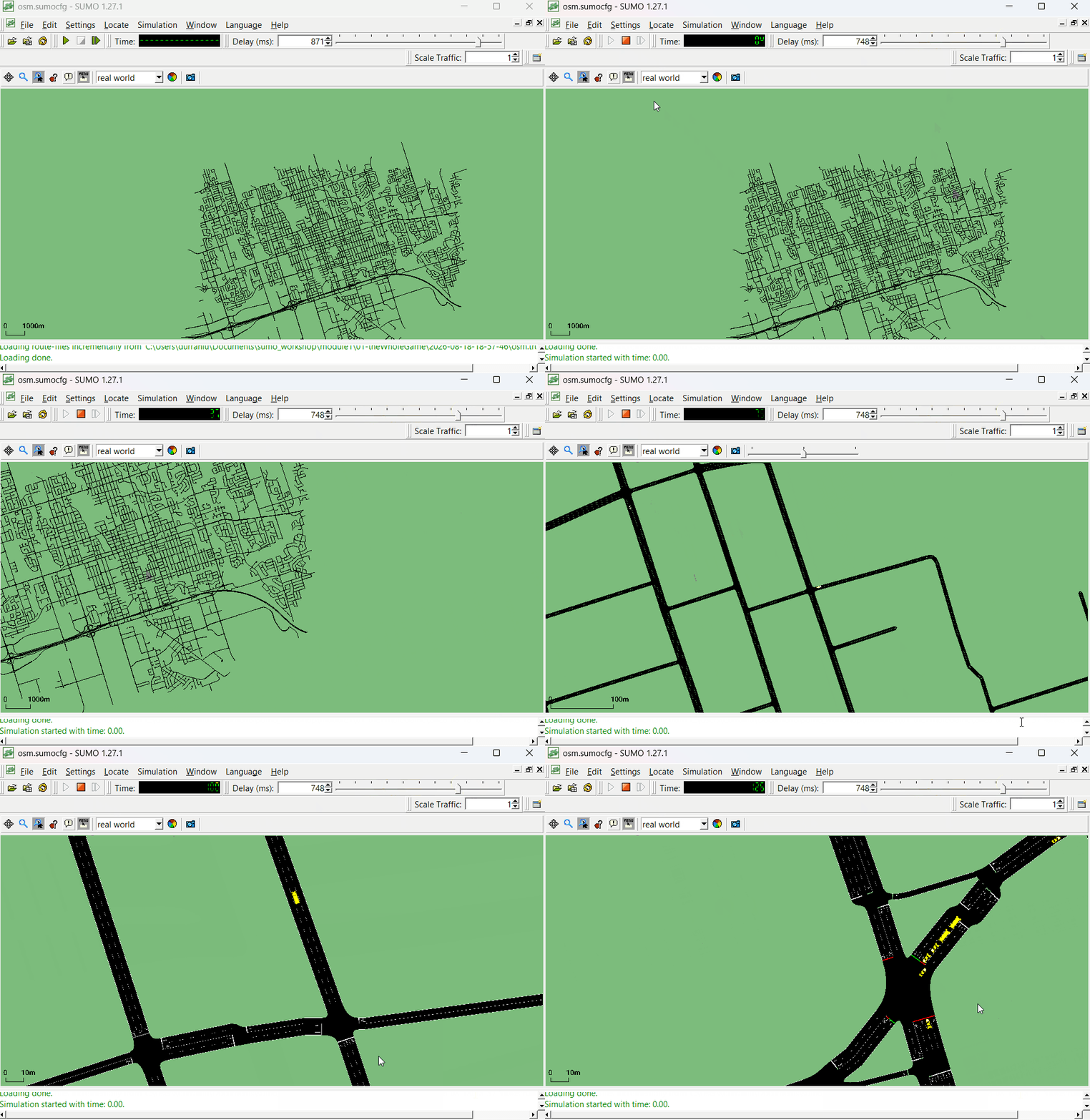
The previous step would open SUMO for you. If it didn’t or you closed SUMO, you may open it again by double clicking the osm.sumocfg file in the module1\01-theWholeGame\<new folder with date> folder.
- Increase the Delay (ms) to > 500 so you’d be able to see the traffic in slow motion
- Click the Run button (looks like the Play button)
- If vehicles are not seen right away, click on the Locate Structures button (question mark icon) and then click the Locate Vehicles button. Select any vehicle and then click Center or Track
- You may stop the simulation at any time
View the contents of module1\01-theWholeGame\<new folder with date>
Relevant files:
osm.net.xml.gz: Networkosm.passenger.trips.xmlandosm.trucks.trips.xml: Individual trips at random road segmentsosm.sumocfg: Configuration file that specifies the network, route (trips), output, and other files